Starting in April 2026, public higher education institutions like VTSU (serving a large population) must be compliant with new regulations for accessibility of digital content. The regulations are based on the WCAG 2.1 AA standards.
In today’s world, there are significant advancements in assistive technologies that facilitate access to education. To work well, these technologies rely on content meeting accessibility standards. The resources provided here are intended to help faculty and staff develop skills and knowledge of digital accessibility, assuring that the content we curate and create will work for our students and colleagues.
While the new Title II ADA regulations may be helping us turn focus and attention to this important topic, the options and access we create for students will be life-changing for many and incredibly useful for others.

ADA Regulations
Subpart H (Web & Mobile Accessibility) of Title II of the Americans with Disabilities Act
WCAG 2.1 AA Standards
Web Content Accessibility Guidelines (WCAG) 2.1: Level AA standards are written into the regulations of Title II of the ADA
VSCS Policy
Under development.
VTSU Policy, Procedures, and Responsibilities
Under development.
EdPros
VTSU hired EdPros to conduct 4 trainings for faculty from April-September 2025. All VTSU faculty are automatically enrolled in the Canvas course titled Digital Accessibility Training with EdPros. Recordings of these trainings along with robust resources are included in this Canvas site.
CTLI Digital Accessibility Habits Tutorials
Over the 2025-26 Academic Year, the CTLI will be creating discrete tutorials to help you develop accessibility habits. Check back here for new content each month.






VTSU Disability Services
Colleagues in Disability Services have created an Accessibility Resources for Faculty and Staff page on their Sharepoint site that includes resources on frequently asked questions they receive.
VSCS IT Shared Services
Colleagues in IT Shared Services have created a Digital content accessibility: YuJa Panorama and additional resources webpage in their Knowledge Base.
Note that different accessibility checkers may use different sensitivity settings for flagging issues. For instance, the Microsoft 365 Accessibility Checker may give you a 100% accessible rating for a Word document, and then, when you upload that same document to Panorama, it may indicate you need to add a title to the document and set a language to be fully accessible. Combining checkers can be effective, but also may feel like more work. As you explore tools, you may find you prefer one tool over another. In our experience, Panorama’s scans are thorough and may be most useful to faculty. If you fix a document “in-line” in Panorama, remember that it is editing the version uploaded to Canvas and not the version you may have saved in your OneDrive or other personal files.
Panorama is an accessibility checker integrated into Canvas and supported by IT Shared Services. It will flag potential issues on pages, uploaded documents, discussions, and more. Additionally, you’ll be presented with guidance on how to fix those issues.
Adobe Acrobat Pro can be used to create and verify PDF accessibility and is supported by IT Shared Services. PDF remediation can be time-consuming and technical. Consider whether an alternate format (e.g., page in Canvas or Word document) might be a better way to provide access to that content.
All VTSU faculty and staff can access an Adobe Acrobat Pro license and install it on their computer by submitting an IT Helpdesk ticket. This step is necessary due to Adobe’s licensing process. IT will create an Adobe account for you and apply the appropriate license. These are “stand-alone” accounts—not single sign on (SSO) like a number of our other services (such as Zoom). In some cases, IT will also need to schedule time with you to install the software. Please submit your request well in advance of needing to use the software.
The Microsoft 365 Accessibility Checker can scan your content for potential issues and provide coaching to fix those barriers to access. Common apps include the checker when using software installed on your computer or on the web; mobile apps are generally not supported.
App | Windows | Mac | iOS | Android | Windows 10 app | Web |
|---|---|---|---|---|---|---|
| Outlook | Y | Y | N | N | N | Y |
| Word | Y | Y | N | N | N | Y |
| Excel | Y | Y | N | N | N | Y |
| PowerPoint | Y | Y | N | N | N | Y |
| OneNote | Y | Y | N | N | Y | Y |
| Sway | N | N | N | N | N | Y |
| Visio | Y | n/a | N | n/a | N | Y |
The WebAIM Contrast Checker allows you to input foreground and background color combinations and see if your choices meet WCAG 2.1 AA standards. If they don’t, you can adjust the lightness “slider” to increase contrast until it is sufficiently accessible.
Arizona State University has built a genAI Image Accessibility Generator to assist with creating Alternative Text (frequently called Alt-Text) and Image Descriptions. One or both of these should be added when you share visual information (e.g., images, graphs, charts, graphic organizers, etc.).
Example 1: Photograph
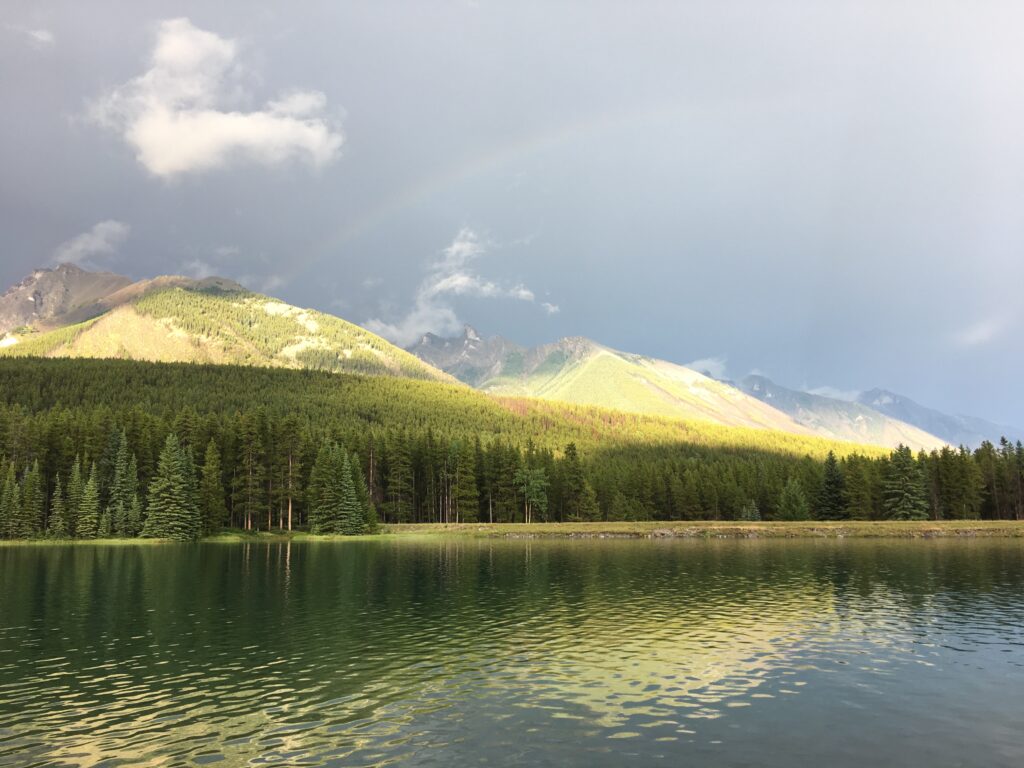
Image Descriptions by ASU’s Image Accessibility Generator:
Alt-Text: A serene lake reflecting a forest and sunlit mountains, with a rainbow in a cloudy sky.
(Compare with Microsoft’s automatically generated Alt-Text: A body of water with trees and mountains in the background.)
Image Description: The image shows a tranquil landscape with a serene lake in the foreground, reflecting the surrounding scenery. Stretching across the surface of the water are soft ripples, catching the sunlight in varying shades of green and yellow. In the middle ground, a dense forest of evergreen trees lines the lake’s edge, with tall coniferous trees, mostly pine, creating a thick, green band. Behind the forest rise majestic mountain peaks partially covered by shadows, with slopes illuminated by warm sunlight. Over the mountains, a subtle rainbow arcs gently across a cloudy sky, which transitions from dark gray to lighter tones, hinting at clearing weather.
Example 2: Table
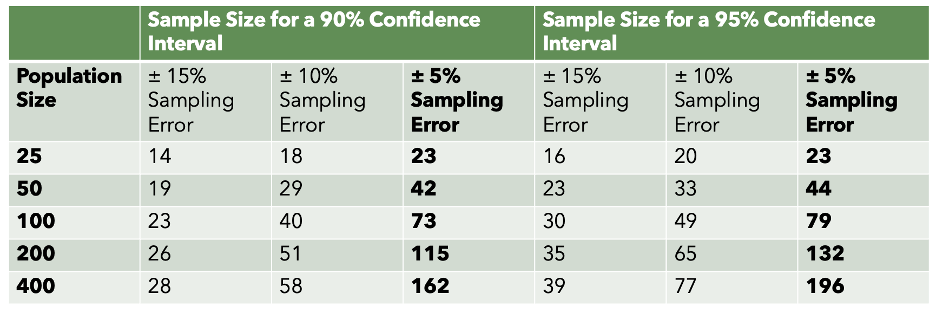
Table Descriptions from ASU’s Image Accessibility Generator:
Alt-Text: Table of sample sizes for varying confidence intervals and errors.
(Compare with Microsoft’s automatically generated Alt-Text: A table with numbers and text.)
Image Description: The image is a table displaying sample sizes needed for different confidence intervals and sampling errors. The table is divided into two main sections: one for a 90% confidence interval and the other for a 95% confidence interval. Each section is further divided by columns indicating sampling errors of ±15%, ±10%, and ±5%. The rows represent different population sizes: 25, 50, 100, 200, and 400. The values in the table are represented in a grid with alternating light green and white background for each row, with white text on a dark green header and black text throughout.
Mathkicker.ai is a free, AI-based mathematics converter.
ReadSpeaker is the text-to-speech solution in Canvas. It can be found in Canvas at the bottom left of your screen.
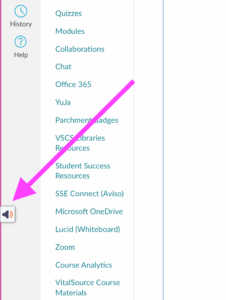
ReadSpeaker is also available for use in both Canvas Classic and New Quizzes. While updates to the ReadSpeaker webReader are coming in mid-to-late February, VSC students that require support in Canvas New Quizzes can access the ReadSpeaker Bookmarklet text-to-speech tool by pressing “control” and “R” simultaneously.
For help from the VSC IT Learning Technologies Team, please submit a ServiceDesk ticket.
Fonts
- Hyperlegible Fonts – Developed by the Braille Institute, and free for download, this family of fonts was designed to improve legibility and readability for individuals with low vision.
- Dyslexie Font Free Chrome Extension – The Dyslexie font was designed by a dyslexic and focuses on legibility by enhancing visual distinction between characters, reducing reading complexity and helping individuals navigate text with less mental effort and greater fluency. The font and some related products must be purchased, but the chrome extension is free and allows students to view websites in the Dyslexie font.